Key takeaways
- Three routes get AI visibility data into Looker Studio: a native connector, a scheduled export to Google Sheets or BigQuery, or a manual CSV. Use a connector if your tool has one.
- Connectors are "current enough for reporting", not a true live feed. Server caches and Looker Studio's own freshness setting both add delay.
- Chart visibility score, share of voice, citations per response and sentiment as trends, and segment by model and prompt type so blended averages don't mislead you.
- Most connector problems come from bad API keys, plan limits, project-scoped keys pointing at the wrong site, and too many charts refreshing at once.
- Always check one known number against the source tool before you send the report to anyone.
Why bother putting AI visibility data in Looker Studio
Most AI visibility tools have a decent dashboard of their own. So why rebuild it elsewhere?
Because nobody outside the SEO team logs into it. Your CMO wants AI visibility next to organic sessions, conversions and spend. Your clients want a link that opens without a new account. Looker Studio is free, shareable and already where the rest of your reporting lives, so putting AI search data next to Google Search Console and GA4 is usually worth the hour it takes.
It also lets you answer cross-source questions. Which pages get cited by AI but barely rank in Google? Did AI-referred sessions rise when share of voice rose? You can only blend those in a tool that holds both sides.
One naming note: Google Data Studio was renamed Looker Studio in October 2022. Older tutorials and some vendor docs still say Data Studio. It is the same product.
Pick your export route
There are three ways to do this, and the right one depends on what your tool supports.
| Route | Setup effort | Freshness | Best for |
|---|---|---|---|
| Native Looker Studio connector | Low (API key or ID, about 10 minutes) | Cached, refreshes on a schedule | Ongoing client and team dashboards |
| Scheduled export to Sheets or BigQuery | Medium | Depends on the schedule | Tools without a connector, or blending lots of data |
| Manual CSV upload | Low, but repeated forever | Stale the day you upload | One-off audits and board decks |
I'd treat manual CSV as a last resort. It works, but someone has to remember to do it every Monday, and that someone eventually forgets.
The generic fallback for tools without a connector is simple: export a CSV or scheduled report, land it in Google Sheets or BigQuery, then point Looker Studio at that. Third-party ETL tools can automate the middle step.
Tools with native Looker Studio connectors
Several AI visibility and rank tracking tools ship their own connector. The setup pattern differs a little between them.
Promptwatch
Promptwatch has an official connector that reads through its API and authenticates with a project API key. One data source maps to one project, so agencies create one key and one data source per client.
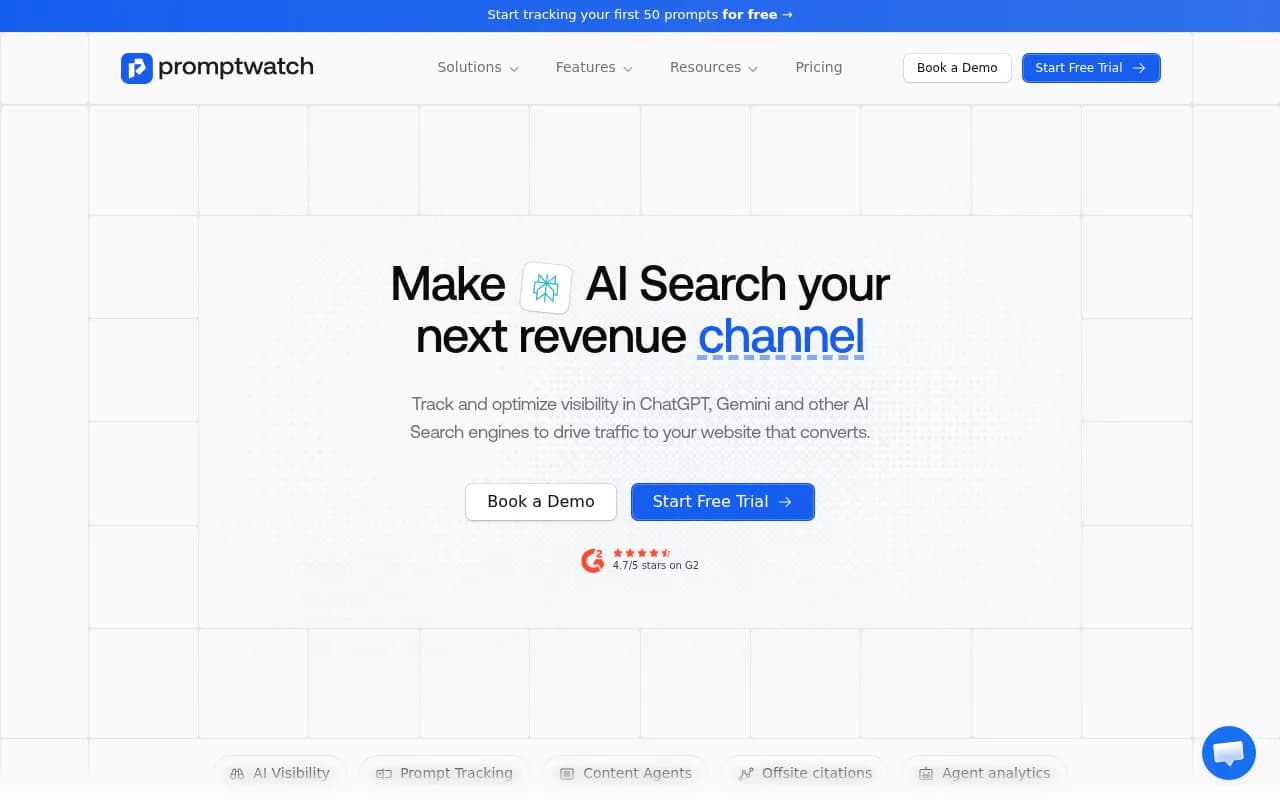
The data you can pull includes visibility score over time (by day, week or month, filterable by model, monitor or prompt), sentiment, share of voice, responses and mentions, top competitors, citation analytics, cited domains over time, top cited pages, and a model-by-brand competitor heatmap. It also exposes AI crawler activity trends, top crawled pages and visitor analytics, which is handy if you want AI traffic next to GA4. Shopping, ads and content surfaces stay in the app and aren't exposed.
Setup in short:
- In Promptwatch, go to Settings, then Organization settings, then API Keys.
- Name the key something you'll recognise later, for example "Looker Studio - Client X".
- Choose Project Key (the one labelled for a single project and Data Studio integration), pick the project, keep it Read-only, and create it.
- Open the Promptwatch connector in Looker Studio, authorize with your Google account, paste the API key, connect, then create the data source and add it to a report.
Use a Project Key rather than a Master Key. Master keys span every project and need an extra project header on every call, which the connector isn't built around. Check the Promptwatch docs for the connector ID and the pricing page for which plan includes Looker Studio, since third-party comparisons list it as a Professional-tier feature and I couldn't confirm that.
Otterly.AI
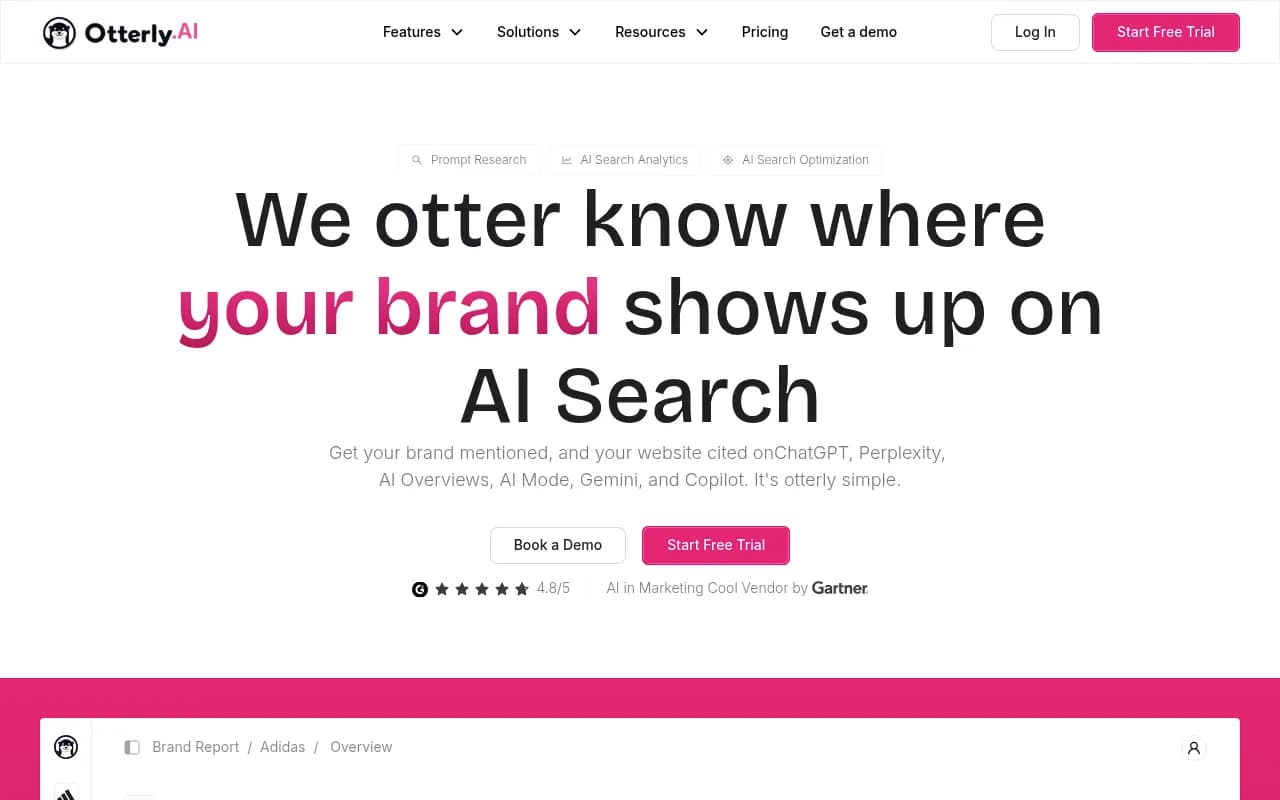
Otterly.AI launched a connector that covers ChatGPT, Perplexity, Google AI Overviews, AI Mode and Copilot. Metrics include coverage percentage, mentions, share of voice, average rank, domain coverage and URL-level citations, with filters for date, country and brand report. It includes a pre-built report template: connect, then click Create Report. It is listed on Standard, Premium and Enterprise plans at no extra cost, and agencies create one data source per workspace.
SE Ranking
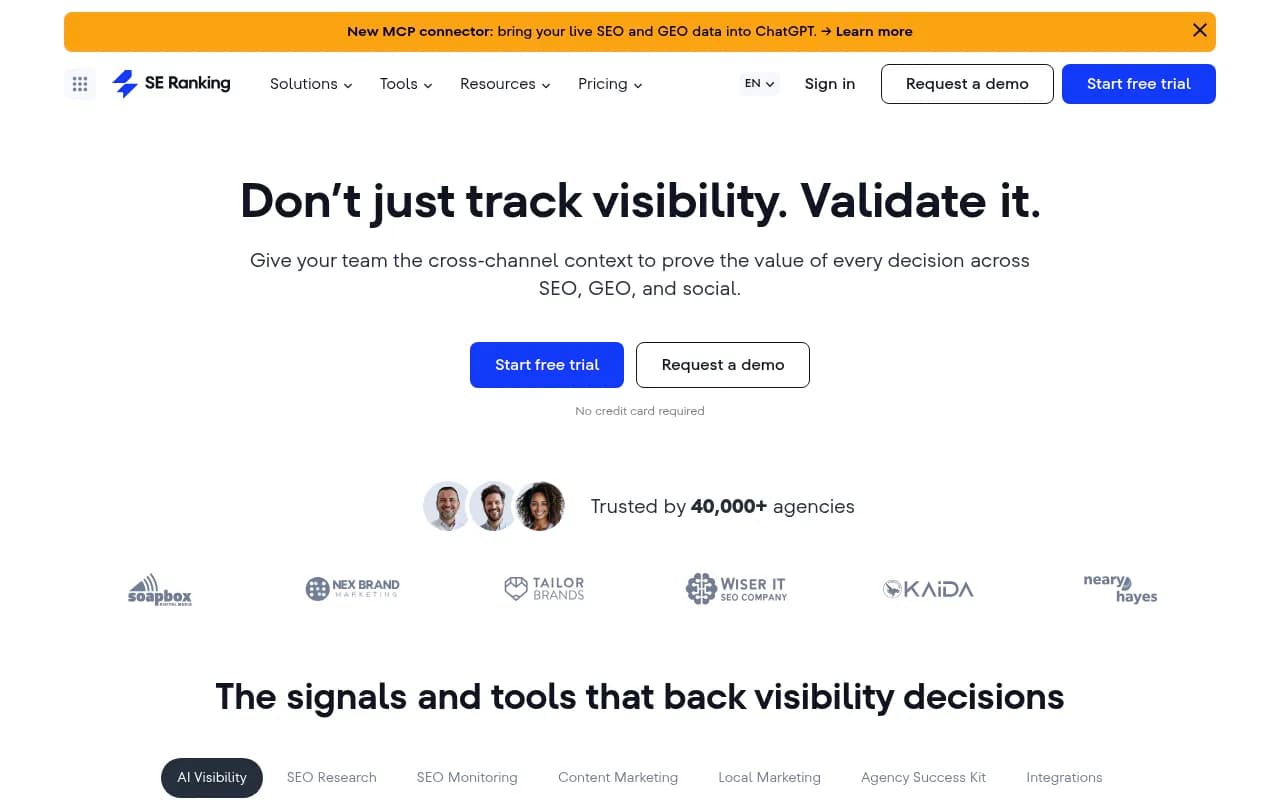
SE Ranking installs as a partner connector. In Looker Studio you create a data source, choose Build Your Own, enter a Deployment ID and validate it, authorize, then supply your SE Ranking API token. There's a separate AI Search connector with its own deployment ID. Their advice is worth following: test each operation individually before switching to "All Operations (Combined)".
ProRankTracker and Nightwatch
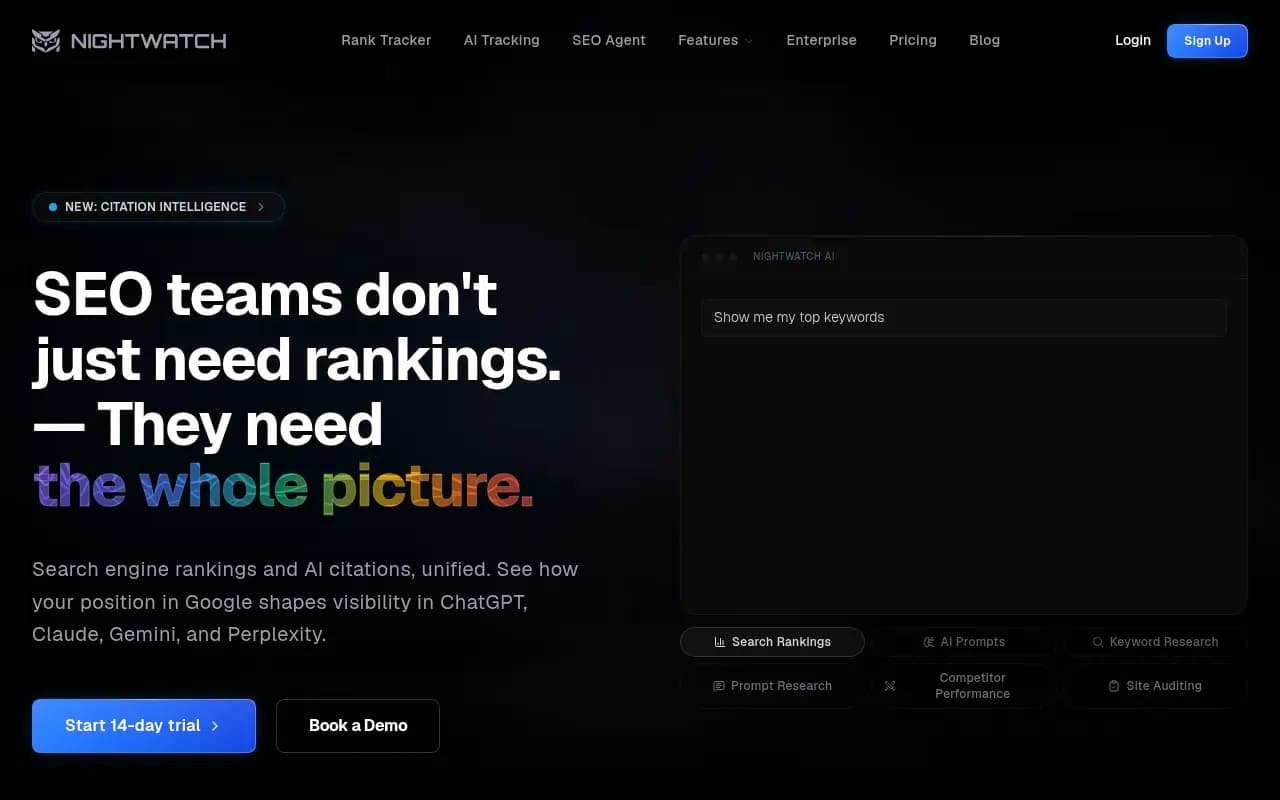
ProRankTracker works differently. You generate a report inside your account (Dashboard, Overview, Daily Breakdown, AI View or AI Visibility), get a "Looker ID", and paste that into the Pro Rank Tracker connector. Nightwatch lists a Looker Studio integration too, and its own guide describes a Google Sheets export pipeline as the most reliable way to move keyword rank data across.
Quick comparison
| Tool | Auth method | Scope per data source | Notable data |
|---|---|---|---|
| Promptwatch | Project API key | One project | Visibility, SOV, citations, crawler logs, visitor analytics |
| Otterly.AI | Account connection | One workspace | Coverage, average rank, URL citations |
| SE Ranking | API token plus Deployment ID | Per operation | Separate AI Search connector |
| ProRankTracker | Looker ID from a generated report | One report | AI View and AI Visibility report types |
If your current tool isn't here, the directory at ai-rank-tools.com lists AI rank trackers so you can check which ones ship connectors or APIs.
Build the dashboard step by step
The steps below use the Promptwatch flow, but the shape is the same for any connector.
1. Create the data source
In Looker Studio, click Create, then Data source, search for the connector, authorize, and enter your credentials. Name the data source after the client or project. Six months from now you'll have a dozen of them.
2. Check the fields before charting
Open the field list and confirm dimensions and metrics were typed correctly. Dates should be dates, not text. Visibility scores should be numbers with averaging, not summing, as the default aggregation. Summing a 0-100 score across days is a classic mistake that produces a beautiful, meaningless chart.
3. Add a scorecard row
Put four scorecards across the top: visibility score, share of voice, sentiment and mentions. Each one gets a comparison to the previous period. This is the row executives read. Everything below it is for you.
4. Add trend lines
Time series charts do the real work here. Chart visibility score and share of voice by day or week, with a model dropdown so viewers can switch between ChatGPT, Gemini, Perplexity and the rest. AI answers are noisy day to day, so default to weekly granularity and let people zoom in.
5. Add a competitor view
A model-by-brand matrix is the most useful single table in the whole report. It shows at a glance where you lose, such as strong in Perplexity and weak in ChatGPT. Pair it with a top competitors bar chart.
6. Add citation panels
Chart cited domains over time and top cited pages. This tells you which of your URLs actually earn citations and which third-party sites AI trusts in your category. If your tool exposes crawler data, add top crawled pages next to it, because a page that's never crawled can't be cited.
7. Add filters
Add drop-downs for model, country and prompt or monitor, plus a date range control. Then lock the layout. Shared dashboards get mangled quickly when everyone can edit.
Which metrics are worth charting
Not every number deserves a chart. These are the ones I'd keep.
Visibility score and share of voice
These are your headline trends. Visibility tells you how prominently you appear, and share of voice tells you how you compare to rivals. Read them together: low share of voice usually means a coverage problem, not a quality problem.
Citations per response
Put this on a trend line, and don't panic when it drops. Per Promptwatch's average sources per response data (daily averages from September 2025, web-search responses only), ChatGPT averages about 5 citations per answer, Google AI Overviews about 10, and Perplexity almost exactly 10 every day. Copilot swung from under 2 to nearly 17 before settling at the low end. ChatGPT's figure drifts with model and retrieval updates.
Two implications. A sudden drop in citations is often an engine-side change, not a content problem. And Perplexity's steadiness makes it a good control series on your chart: if everything moves except Perplexity, the shift is probably on the other engine's side. Judge Copilot on monthly trends, not weekly ones.
Segment by prompt type
Blended averages hide very different realities. In Promptwatch's data on unique domains per ChatGPT response (Sep 28 to Oct 4, 2026), 47.6% of responses cited 10 or more domains. But organic prompts hit that mark 52.5% of the time, competitor comparisons 49.1%, and brand-specific prompts only 21.3%. For brand prompts, 5 domains was the most common count.
So add prompt type (organic, brand, comparison) as a filter or breakdown dimension. A brand prompt where you're one of 5 cited domains is a very different fight from an organic prompt with 10 or more.
Sentiment
Keep it as a trend and a distribution. A flat 50-ish score on a 0-100 scale is neutral, so don't read a 52 as praise.
Blend AI data with Search Console and GA4
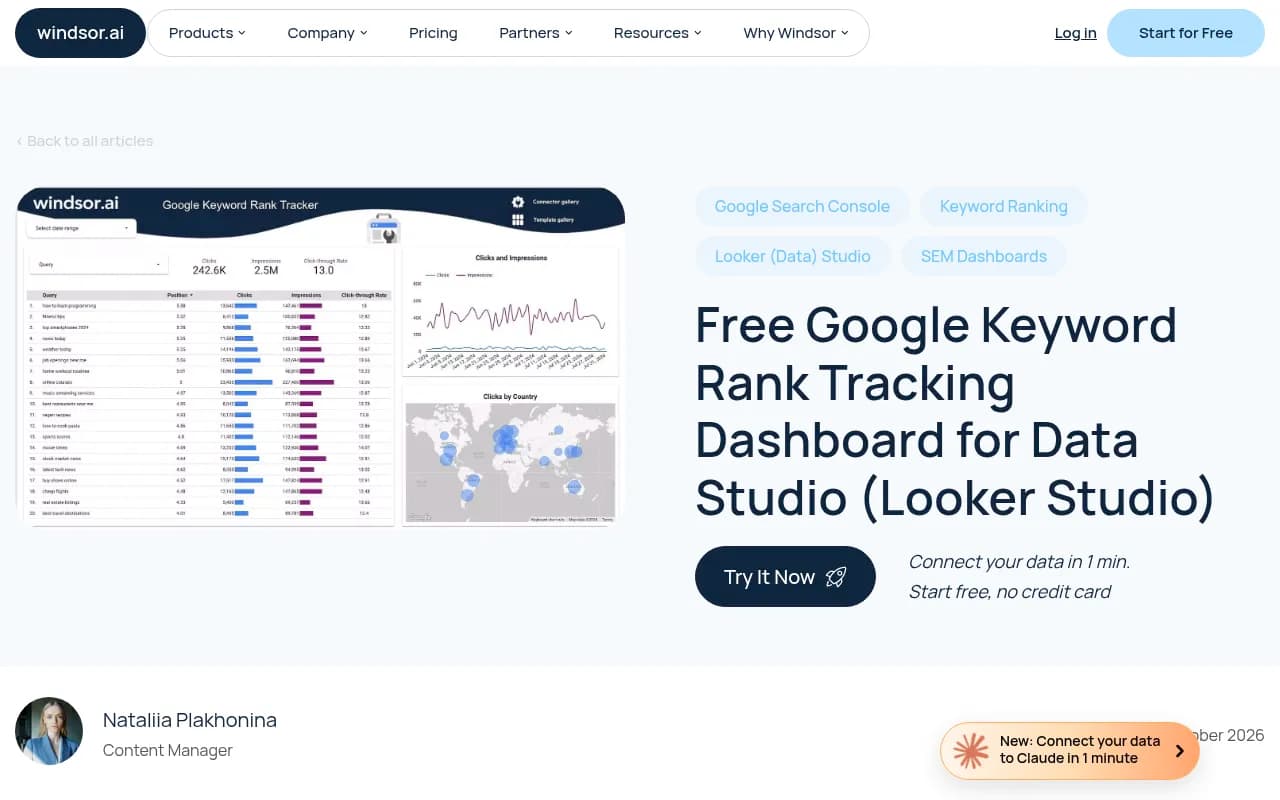
This is where Looker Studio earns its keep. Blend your AI visibility data source with Google Search Console on a shared dimension such as page URL or date, and you can show pages that rank in Google but never get cited. If you want a Search Console reference, Windsor.ai publishes a free keyword rank tracking template that pulls query, position and date on a schedule. Note that Search Console position is an average per query per day weighted by impressions, not a live rank check, so label it that way.
For agencies running multiple clients, repeat the connector setup per project and blend or switch between the data sources. Separate data sources per client also keeps access clean.
How fresh is the data, really
Be careful with the word "live". Promptwatch's own docs describe the result as current enough for reporting, not a live-refresh feed. There are two layers of delay. The API serves reads from a short server-side cache, from a couple of minutes for visibility and sentiment to longer for monitors and models. Then Looker Studio adds its own data freshness interval, which you set per data source.
For a weekly client report, none of that matters. For a war-room screen during a launch, set freshness as short as the platform allows and tell people what "current" means.
Troubleshooting common failures
| Symptom | Likely cause | Fix |
|---|---|---|
| "Invalid API key" | Key mistyped or deleted | Re-enter it or create a new one. Deleting a key breaks every data source built on it |
| "API access is not available on your current plan" | API is a plan feature | Upgrade. Existing keys resume working after an upgrade |
| Numbers for the wrong site | Key is scoped to a different project | Create a key under the correct project |
| Charts fail or load slowly | Rate limits hit by many charts refreshing at once | Reduce charts per page, spread them across pages, or lengthen the freshness interval |
| Totals look inflated | Averages being summed | Set aggregation to average for scores |
Rate limits are shared across all keys in an organization and enforced per second, minute and hour, so one heavy report can starve another. Check the vendor's rate limit page for your plan.
When there is no connector: the Sheets route
If your tool only offers CSV or scheduled exports, here is the workaround.
- Schedule a recurring export from the tool, or pull data via its API with a script.
- Append each export to a Google Sheet, one row per prompt, model and date. Keep a consistent column order.
- In Looker Studio, add the Sheet as a data source and set column types manually.
- For anything above a few hundred thousand rows, move to BigQuery so queries stay fast.
Keep a long format (one row per observation) rather than a wide one. It makes filtering by model and prompt type trivial. Promptwatch also offers CSV exports and scheduled PDF reports if you only need a snapshot, and tools like Apify or a simple Apps Script can handle the plumbing.
A quick pre-send checklist
- Compare one known number, such as this week's visibility score, with the source tool.
- Confirm date ranges and time zones match.
- Label Search Console position as an average.
- Make sure the viewer-facing page hides the data source credentials and edit access.
- Add a note about freshness so nobody screenshots a number and calls it real-time.
If you're still choosing a tracker and Looker Studio support matters, the GEO software directory at bestgeosoftware.com is a reasonable place to filter by integrations. Pick one with a native connector, build the dashboard once, and let it update itself.