Key takeaways
- Cloudflare's AI Crawl Control (Security -> Bots -> AI Crawl Control) is free on every plan and gives you per-bot request counts, allow/block toggles, and robots.txt violation logs, but the Metrics tab only shows a 24-hour window unless you're on Enterprise with Bot Management.
- Since September 15, 2026, Cloudflare splits AI crawlers into three categories (Search, Agent, Training) instead of one binary block. New domains onboarding after that date get Training and Agent blocked by default on ad-serving pages only; existing zones keep whatever they already had configured.
- "Requests" in the dashboard include non-rendering pings, and Morningscore's own testing found only around 10% of AI "referrals" were real human clicks, so don't treat raw crawler counts as traffic.
- To get real log export and alerting, you need either the GraphQL Analytics API (all plans), Logpush (Enterprise only), or a free Cloudflare Worker like ai-traffic-alerts-for-cloudflare for real-time pings to Telegram/Discord/ntfy.
- Crawler logs tell you that a bot visited. They don't tell you whether you were cited, what prompt triggered it, or whether a competitor got picked instead. That's a separate layer, and tools like Promptwatch are built specifically to close that gap.
Why crawler logs matter more than they used to
A year ago, AI crawler traffic was mostly a training-data story. You blocked GPTBot, you blocked CCBot, you moved on. That's not the situation anymore. Cloudflare's own data shows AI-only crawlers growing fast as a share of all bot traffic, GPTBot alone went from 11.9% to 28.1% of AI-specific crawler share between July 2024 and July 2025, and the categories of bots have multiplied. You've now got training crawlers, search crawlers, and "agent" crawlers that fetch pages live on behalf of a user typing into ChatGPT or Claude, and they behave very differently.
If you're not watching your logs, you genuinely don't know which of these three is happening on your site, or at what volume. I've seen site owners discover, almost by accident, that a crawler they assumed was dormant had quietly become their third-largest traffic source in raw requests. The Meta-WebIndexer is a good example: it went from about 2% of all tracked AI crawler requests in mid-July 2026 to nearly 38% by August 9, a roughly 17x jump in under a month, reportedly enough to trigger load alerts on smaller VPS-hosted sites, according to Promptwatch's crawler data. That's not a hypothetical risk. That's a bot you might not have been watching for, showing up at a scale that can actually cost you server resources.
Step 1: Confirm your domain is actually proxied
This sounds obvious but it trips people up constantly. AI Crawl Control only works if your domain is proxying traffic through Cloudflare, meaning your DNS records show the orange cloud, not grey. If you're using Cloudflare purely as a DNS host with traffic bypassing the proxy, there's nothing for AI Crawl Control to see. Check this first before you assume the feature is broken.
Step 2: Find AI Crawl Control and read the Overview tab
Log into the Cloudflare dashboard and go to Security -> Bots -> AI Crawl Control, or use the direct link dash.cloudflare.com/?to=/:account/:zone/ai.
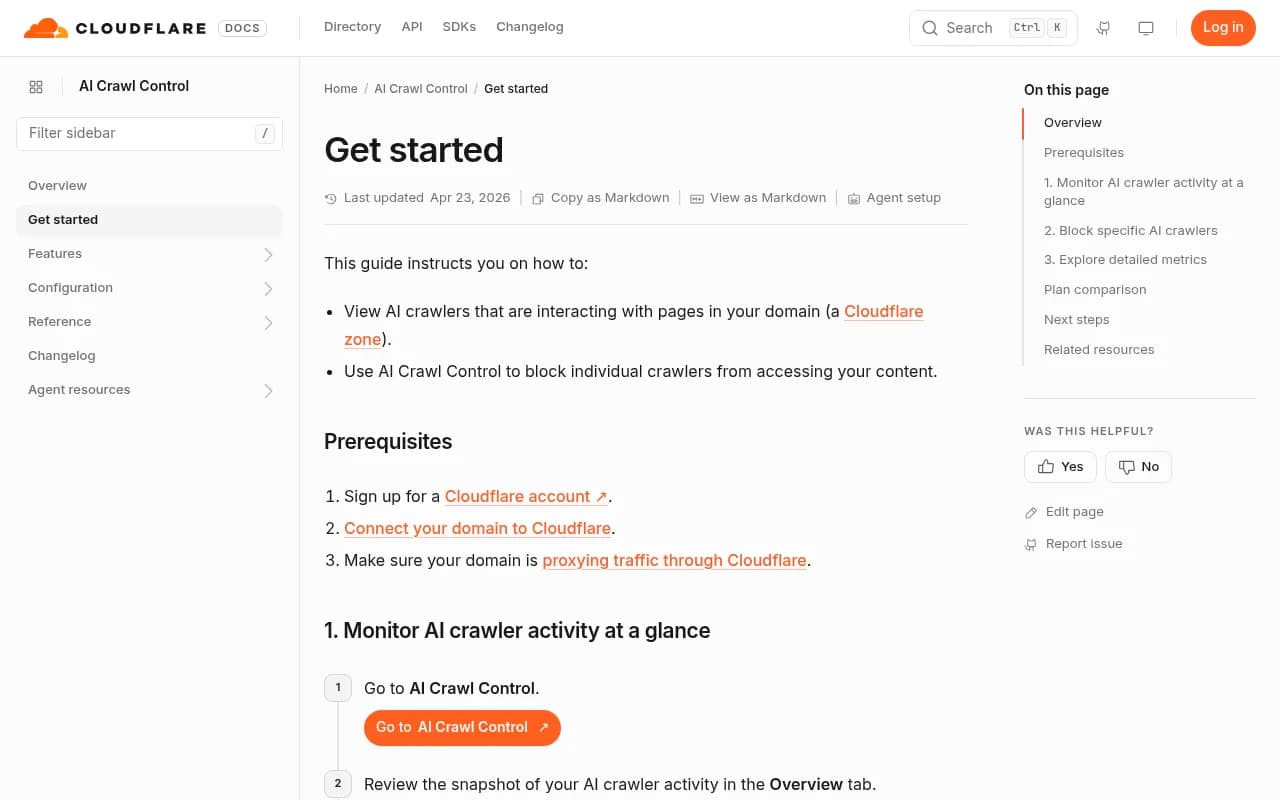
The dashboard has three tabs:
- Overview: total requests, volume change over time, top status code, most popular path, and whether managed robots.txt is active, with crawlers grouped by operator (OpenAI, Microsoft, Google, ByteDance, Anthropic, Meta).
- Crawlers: a per-bot breakdown with request counts and an Allow/Block toggle in the Action column, plus any robots.txt violation logs if a bot ignored your directives.
- Metrics: date-range, crawler, operator, status code, hostname, and path breakdowns, including a "most popular paths" table.
One catch worth knowing before you build a workflow around this: on free, Pro, and Business plans, the Metrics tab is capped at a 24-hour analytics window. If you want to look back further than a day, you either need Enterprise plus Bot Management, or you need to export logs somewhere else, which I'll get to below.
Step 3: Decide your policy per crawler, not per "AI"
Treating "AI bots" as one lump category is the mistake that causes most of the accidental damage. Cloudflare's own September 2026 taxonomy change exists because of this exact problem. As of September 15, 2026, crawlers now fall into three buckets:
- Search: crawlers that build an index to answer future questions, the closest equivalent to a traditional search bot. These are generally worth allowing if you want AI visibility at all.
- Agent: real-time, user-directed fetches, like ChatGPT-User or a browser-use agent, fired off because an actual person asked a question right now.
- Training: crawlers that permanently absorb your content into a model, with no direct citation benefit back to you.
For new domains onboarding to Cloudflare after the September 15 cutoff, Training and Agent are blocked by default, but only on pages that display ads. Search stays allowed by default everywhere. If you already have an existing zone with no AI blocking configured, nothing changes automatically, you keep the open state you had. That said, if you previously turned on the old blanket "block AI bots" toggle, it's worth checking whether that legacy setting is now quietly blocking crawlers you didn't intend to block, including ones that share infrastructure with Googlebot in some configurations. Before you touch anything, screenshot your current settings and export 90 days of Search Console crawl stats as a baseline, so you can tell if a change actually moved the needle.
In the Crawlers tab, you set Allow or Block per bot. For most content sites that want AI search visibility, a reasonable starting policy looks like this:
| Crawler | Operator | Purpose | Typical setting |
|---|---|---|---|
| OAI-SearchBot, ChatGPT-User | OpenAI | Search / Agent | Allow |
| GPTBot | OpenAI | Training | Block (unless you want model training) |
| ClaudeBot, Claude-SearchBot, Claude-User | Anthropic | Crawl / Search / Agent | Allow Search and Agent, consider blocking training-only crawl |
| PerplexityBot, Perplexity-User | Perplexity | Search / Agent | Allow |
| Google-Extended, Google-Agent | Training / Agent | Case by case | |
| CCBot | Common Crawl | Training | Block |
| meta-webindexer, meta-externalagent | Meta | Search / Agent | Monitor closely, volume spikes fast |
For more complex rules than a simple allow/block toggle, Cloudflare lets you layer WAF custom rules on top, useful if you want to block a crawler only on specific paths, like pages behind a paywall, rather than site-wide.
Step 4: Set up Cloudflare's managed robots.txt alongside it
On all plans, Cloudflare offers a managed robots.txt that auto-inserts block directives for a known list of bots (Amazonbot, Applebot-Extended, Bytespider, CCBot, ClaudeBot, Google-Extended, GPTBot, meta-externalagent) and can add a Content-Signal declaration like search=yes, ai-train=no, use=reference, tied to the emerging Content Signals standard. This is a good baseline, but it's declarative, not enforced. Well-behaved crawlers respect it. Badly-behaved ones don't, which is where Cloudflare's AI Labyrinth feature comes in, serving decoy content to crawlers that ignore your robots.txt rather than blocking them outright.
Step 5: Get past the 24-hour window with log export
If you're on a paid plan but not Enterprise, the dashboard's built-in history is too short for real trend analysis. Two options exist:
- GraphQL Analytics API (all plans, no Logpush required): create an API token scoped to "Read analytics and logs" under Zone > Analytics > Read, then query the
httpRequests1mGroupsdataset, filtering onclientRequestUserAgent. This is how most third-party dashboards build their own AI-bot views without paying for Enterprise. - Logpush (Enterprise only): pushes the
http_requestsdataset near real-time to a destination like S3, GCS, or a custom HTTP endpoint, configured via Analytics & Logs -> Logpush in the dashboard or the/zones/{zone_id}/logpush/jobsAPI, with a field list you choose yourself (ClientRequestUserAgent, ClientRequestURI, EdgeResponseStatus, etc.).
A genuinely useful workaround flagged by Morningscore: non-Enterprise customers can't download raw server logs directly from Cloudflare, only aggregated dashboards. If you're on another CDN or want raw logs regardless, export them and run them through a dedicated log file analyzer, Screaming Frog's Log File Analyser is the common choice, to get comparable breakdowns by bot and path.
Step 6: Separate crawler noise from real human traffic
This is the part people skip and then draw the wrong conclusions from. "Requests" in AI Crawl Control includes non-rendering pings, uptime checks, and other noise that has nothing to do with content being read. "Referrals" are closer to real visits, but Morningscore's own cross-check against an independent analytics tool found only about 10% of referrals were unique human clicks, the rest were duplicate hits, bot-like behavior, or re-crawls.
A practical way to isolate genuine AI-driven human traffic without Enterprise access: use Cloudflare's HTTP Traffic tool with two filters stacked together, User-Agent containing the AI referrer string (anthropic.com, claude.ai, perplexity.ai, etc.) plus content-type HTML, then cross-check against a lightweight analytics tool like Plausible for actual entry-page stats. That combination gets you much closer to