Key takeaways
- Webflow OAuth uses the Authorization Code Grant flow. The user approves specific sites or a workspace, and your app never handles API keys. The scope list in your authorization URL matters more than it looks.
- Field mapping is where most publishing integrations break. Map title, slug, body, meta title, meta description and cover image once, and test with a draft before real content moves.
- Draft first is the safe default. Webflow derives status from
isDraftandlastPublished, so you can tell a fresh draft from a live item with unpublished edits. - Localized CMS items share one ID across locales. Use
cmsLocaleIdfor CMS operations, and remember the Data API does not localize images. - GEO content is not only blog posts. Promptwatch Data shows ChatGPT cites product pages, landing pages and listicles heavily, so your collections should carry more than one content type.
Why the Webflow handoff matters for GEO
Most teams that publish for AI search do the writing somewhere else. Research happens in one tool, drafting in another, and then somebody pastes the result into a Webflow collection item by item. That manual step is where formatting breaks, meta descriptions go missing and authors get left blank.
Connecting over OAuth removes the copy and paste. It also forces you to decide, once, how every article field lands in your collection. That decision is the real work. Get it right and every future article arrives clean. Get it wrong and you will be fixing items by hand for months.
This guide walks through the three parts that cause the most trouble: the OAuth connection itself, field mapping, and the draft and localization behavior that decides what goes live.
How Webflow OAuth works
Webflow's Data API v2 uses the Authorization Code Grant flow, as described in the Webflow OAuth reference. To build against it you need a Webflow App with the Data Client building block, plus a client_id and client_secret. Only workspace administrators can view the secret.
The flow has five steps:
- The user logs in to your app (or the publishing tool).
- The app redirects them to Webflow's authorization screen, where they approve specific sites or a whole workspace.
- Webflow redirects back to your
redirect_uriwith acodeparameter. - Your server exchanges the code for an access token.
- The app calls the API with that token on the user's behalf.
If you are a marketer using a tool that already has a Webflow app, you only ever see steps 2 and 3. You click connect, pick a site, approve, and you are done. No token to copy and paste.
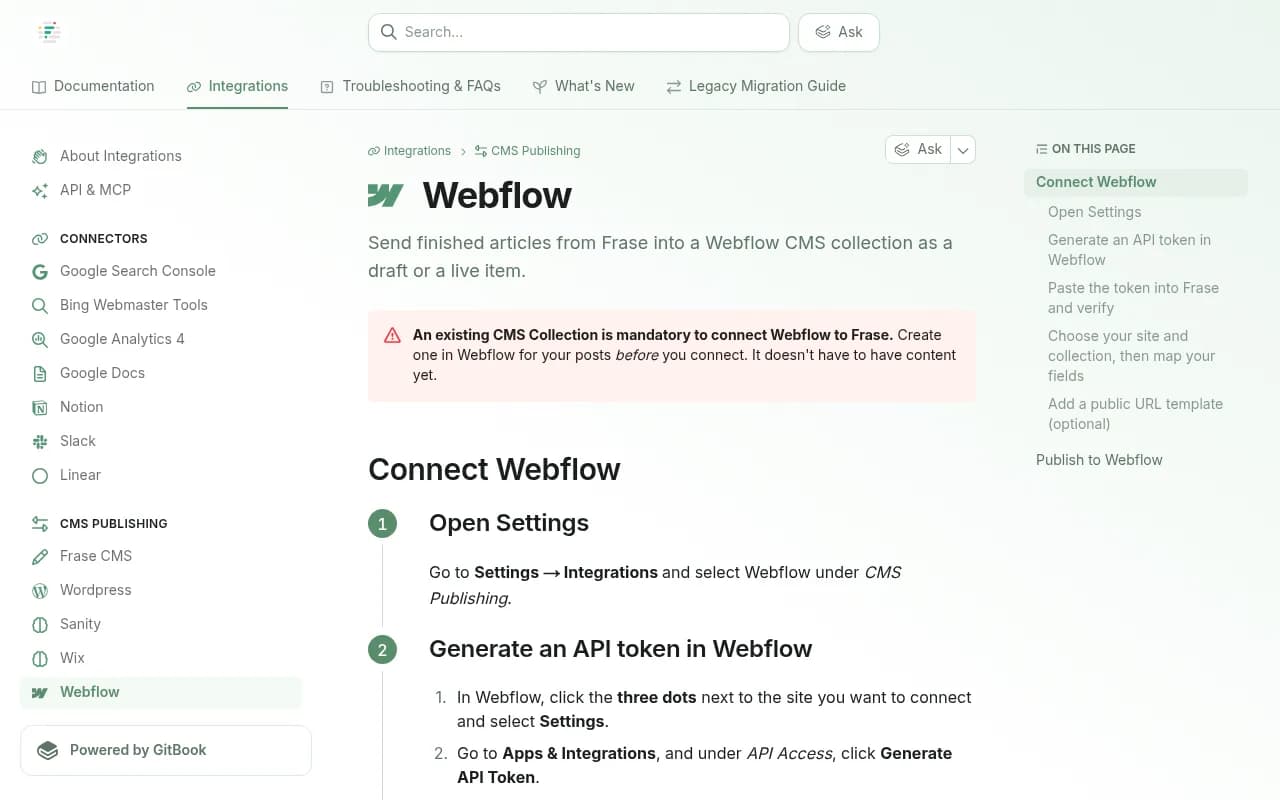
That is a real difference from API token setups. Frase's Webflow integration, for example, has you generate a token in site settings, set CMS and Sites to Read & Write, and paste it in, and Webflow only shows the token once. It works, but OAuth is easier to revoke and does not leave a long-lived secret sitting in somebody's notes.
The authorization URL and scopes
The base URL is https://webflow.com/oauth/authorize. Parameters:
| Parameter | Required | Notes |
|---|---|---|
| response_type | Yes | Always code |
| client_id | Yes | From your app settings |
| redirect_uri | Yes | Must match the app settings exactly |
| state | No | Recommended for CSRF protection |
| scope | No | Space-separated, with the colon encoded as %3A |
The docs' example scopes include cms:read, cms:write, sites:read, assets:read and assets:write. For publishing GEO content you will typically want CMS read and write, sites read (to list collections and locales), and asset write if you upload cover images.
The scope pitfall nobody mentions
Here is the behavior that bites people. Webflow rejects the authorization URL only if it requests scopes beyond those configured in the app. If the URL leaves out a scope your app needs, authorization still succeeds. Later API calls that need the missing scope then fail for those users.
So a connection can look perfectly healthy and still fail on the first publish, or on the first image upload. If you see 403-style errors after a clean connect, check scopes before anything else.
EU workspaces
Workspaces hosted in the EU use separate OAuth hosts and a separate client ID and secret, per the Webflow EU hosting docs. If a connection works for your US test site and fails for a European client, this is the first thing to check.
Prepare the collection before you connect
Every tool I looked at wants a collection to exist first. Frase says an existing CMS collection is mandatory. It does not need content, but it needs fields. Build the structure deliberately.
The Webflow MCP migration walkthrough makes a good point: copying field for field just carries the old limits with you. It suggests adding fields beyond title, slug and body, such as meta description, last-updated date, a short summary, an Open Graph image, and reference fields for authors and categories. Its stated reason is that these give search and answer engines more context about the content.
One collection or several?
This is my inference rather than something Webflow prescribes, but the citation data supports it. In Promptwatch Data's report on ChatGPT citations by content type (Sep 28 to Oct 4, 2026), product pages were 22.4% of ChatGPT citations, landing pages 16.8%, listicles 13.6%, how-to guides 8.7%, documentation 7.5% and comparisons 5.9%. FAQ pages were 3.3%.
A single Blog Posts collection does not describe most of that. If you publish comparisons, FAQs and how-tos, consider either a content type field on the blog collection or separate collections with their own templates. Separate collections cost more setup, but they let each template carry the structure that format needs, like a comparison table or an FAQ block.
The related content half-life report adds a maintenance angle. Of pages ChatGPT cited on July 6, 2026, landing pages and docs stayed cited longest, while news lost half its pages within 36 days. A last-updated field is cheap insurance for the content you plan to refresh.
Field mapping, step by step
Field mapping tells the publishing tool which article field goes into which collection field. It looks trivial and it is the most common cause of broken output.
GrowthX documents a sensible version of this. It maps title, slug, body, meta title, meta description and cover image, and gives a reason for each suggested match. The form blocks you if a required collection field has no source or the article body has nowhere to go, so you cannot confirm a broken mapping. That blocking behavior is the thing to look for in any tool.
A mapping checklist
| Article field | Typical Webflow field type | Watch out for |
|---|---|---|
| Title | Plain text (Name) | Required by default in every collection |
| Slug | Slug | Collisions with existing items |
| Body | Rich Text | Source formatting changes how it renders |
| Meta title | Plain text | Often a custom field you must add |
| Meta description | Plain text | Same, and watch character limits in templates |
| Cover image | Image | Needs a hosted URL, not a local file |
| Author | Reference | Needs a default author or mapping |
| Category | Reference or option | Must exist before the item references it |
| Last updated | Date | Not auto-filled by Webflow |
Rich text, tables and images
Body formatting in the source affects how it lands in Webflow's Rich Text field. Simple, reviewed HTML or markdown converts cleanly. Anything exotic does not.
Tables are the common casualty. Frase's documentation notes that Webflow has no native table element, so tables need a workaround. Since comparison tables are exactly what GEO content leans on, test this before you commit to a tool. Common workarounds are embedding table HTML through a custom code embed or rendering the table in the template from structured fields.
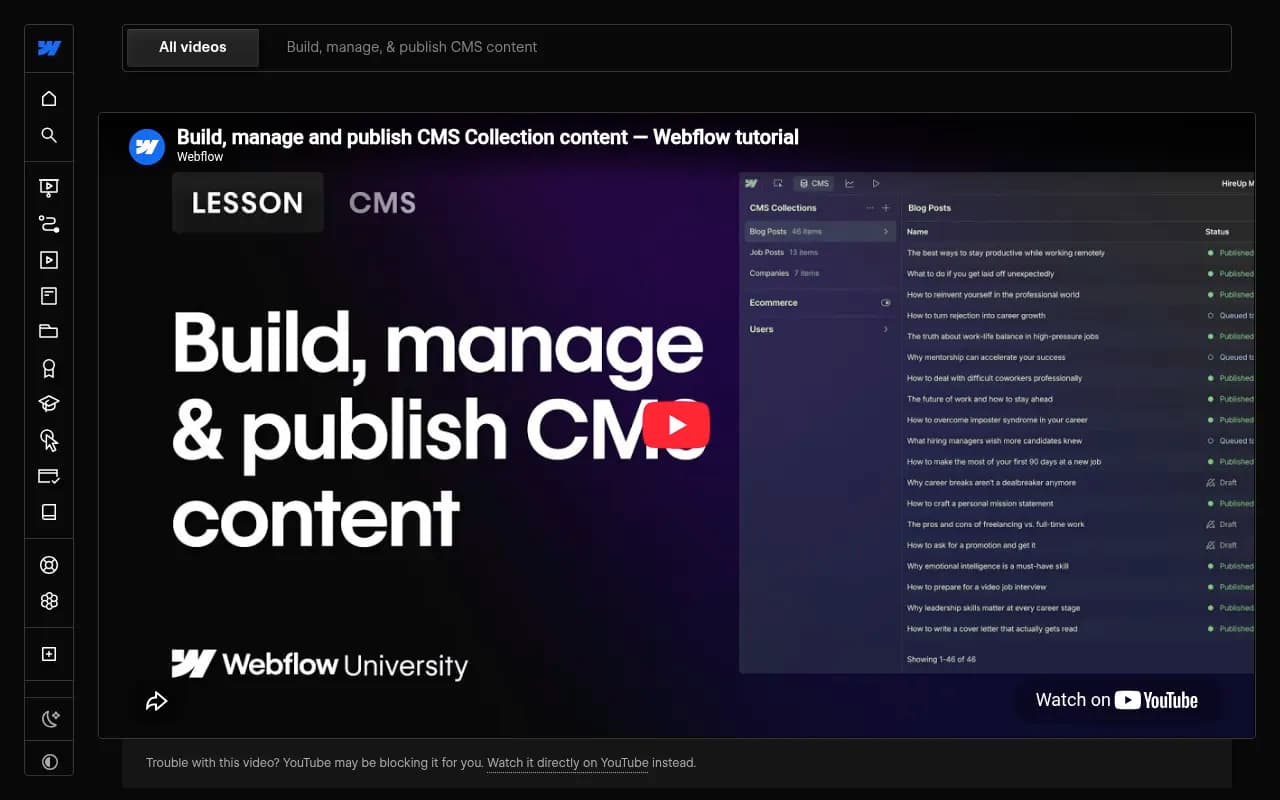
Images need hosted URLs. The Webflow migration video points out that local files cannot be fetched automatically. Upload them to the Assets panel first and use the resulting Webflow-hosted URL. If your connection has the assets scopes, a tool can do that for you.
Run a test article
GrowthX's wizard stages a sample article as a draft and then shows what Webflow received, field by field, with a link to the real item. Do the same by hand if your tool does not. One test item will catch missing authors, blank meta fields and broken tables while there is only one thing to fix.
If you also import in bulk by CSV, the column names must match the collection field slugs, per Webflow University.
Drafts, staging and what actually goes live
Be careful here, because the vocabulary differs between tools and Webflow itself.
The Webflow developer docs say publishing status is derived from two properties, isDraft and lastPublished:
| lastPublished | isDraft | Derived status |
|---|---|---|
| null | true | Draft |
| set | true | Changes in draft |
A live item with unpublished edits therefore shows as changes in draft, not as a separate item. That is useful: you can edit a live page's source and the public version stays as it was until you publish.
How tools handle the draft step
- GrowthX saves every article as a draft. Going live from the tool only works when the connection's live-publishing switch is on, and it starts off.
- Cotera creates items as drafts and they go live only through a separate publish call.
- Frase lets you send either a draft or a live item from the article editor.
My recommendation: start in draft mode for the first batch, and keep live publishing off until the mapping has survived at least a handful of real articles. Draft items do not appear on your published site, so the review happens in Webflow where your editors already work.
Once you trust the pipeline, scheduled hands-off publishing is reasonable for low-risk formats. Keep humans in the loop for anything that makes factual claims about pricing, products or compliance.
Localized collections
Localization adds a second dimension to everything above. The Data API localization docs describe the model, though the CMS section of the page I reviewed was cut off, so verify per-locale publishing details against the Webflow localization guide before building on them.
What is clear:
- A site has exactly one primary locale and any number of secondary locales, limited by the Webflow plan.
- You get locale identifiers from
GET /v2/sites/{site_id}, underlocales.primaryandlocales.secondary[]. Each has anid, acmsLocaleIdand a tag likefr-FR. - CMS operations use
cmsLocaleId. Pages and components uselocaleId. Mixing them up is an easy mistake. - If you send no locale identifier, the request acts on the primary locale.
- Localizable content includes page content, component overrides and CMS items. Images cannot be localized through the Data API and must be updated in the Designer.
- Items in the primary locale can have localized variants that share a single ID.
What this means for GEO publishing
The default-to-primary behavior is the one to design around. If a tool does not pass a locale, your French article lands in the English variant. When you map fields for a localized collection, confirm that the tool lets you choose the target locale per article, and test with a secondary locale before bulk publishing.
Also plan for images. Because the API will not localize them, a localized article that needs a locale-specific cover image will need a manual step in the Designer, or you accept a shared image.
On the monitoring side, keep language and market separate. Prompts in different languages produce different citations, so track each locale as its own set rather than blending them.
Closing the loop: tracking what you publish
Publishing is half the job. The other half is learning whether AI crawlers read the page, whether it gets cited and whether it sends visitors.
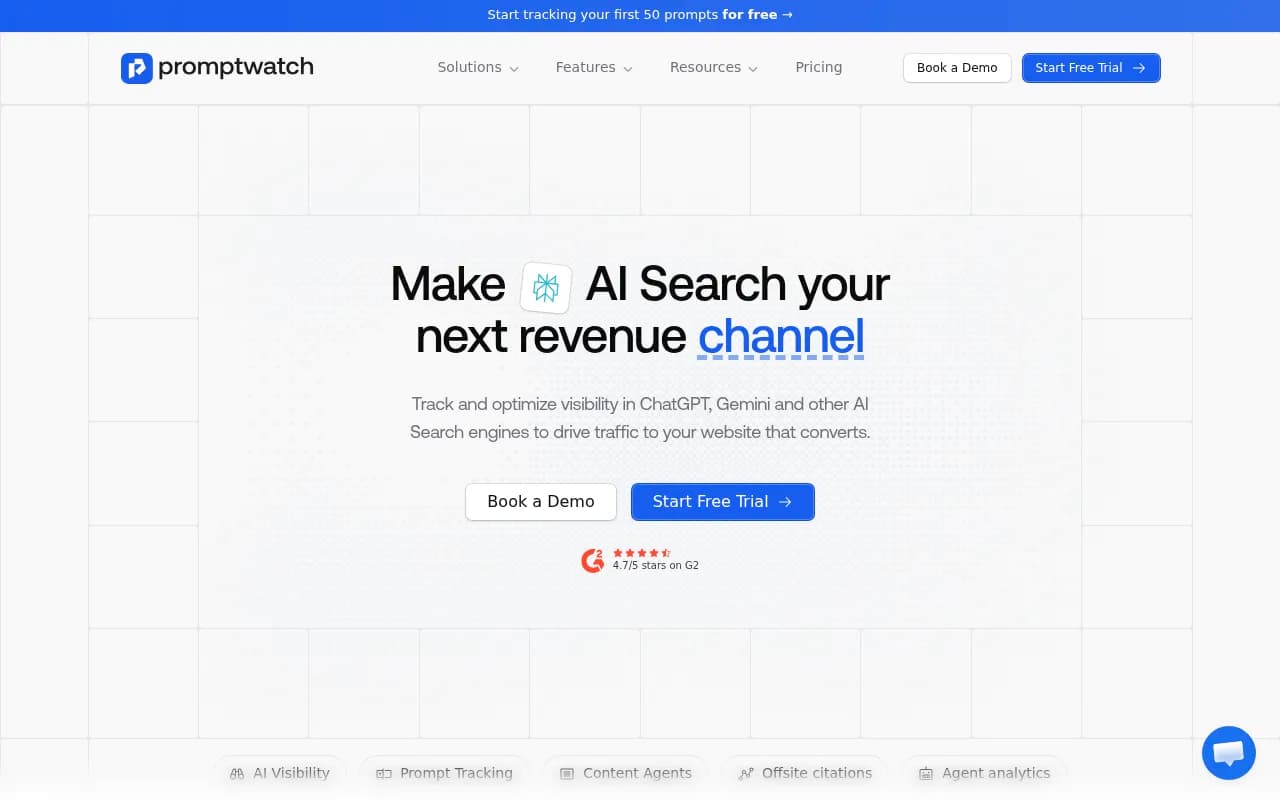
A few tools in this space handle both sides. Promptwatch connects to Webflow through OAuth or the Webflow Marketplace app. You map title, description, body, featured image and publish date once, and publishing a live item does not rebuild the whole site. Localized collections are supported, and each piece can go out as a draft or live, manually or through the Content Agent. It then follows the published URL through AI crawls, citations and AI traffic, which is the part a plain publisher never sees.
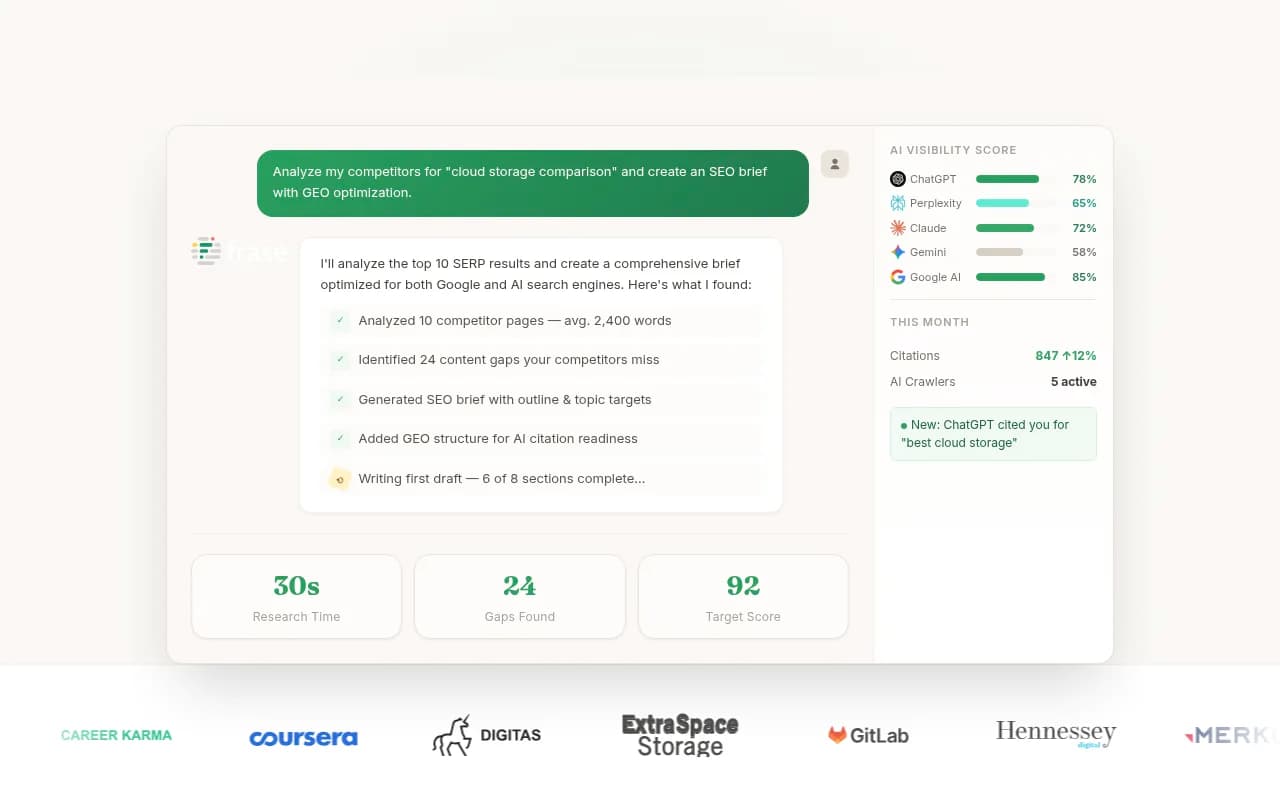
For the content-writing side, other options in the catalog include Frase, which supports Webflow draft or live publishing via API token, and GrowthOS, which stages drafts with a test article.
If you want to compare more options, the GEO software directory at bestgeosoftware.com lists platforms by capability.
Tool comparison for Webflow publishing
| Tool | Connection method | Draft behavior | Notes |
|---|---|---|---|
| Promptwatch | OAuth or Marketplace app | Draft or live, manual or Content Agent | Tracks crawls, citations and AI traffic per published page; localized collections supported |
| Frase | API token (CMS and Sites read and write) | Draft or live from editor | Existing collection required; tables need a workaround |
| GrowthOS | Wizard-based connection | Draft first, live switch off by default | Test article staged as a draft |
| HyperSEO | Authorized app connection | Publishes as Collection items | Writing and publishing run inside its own dashboard |
Confirm current plan limits and pricing on each vendor's site, since I did not find reliable numbers for them.
Troubleshooting common failures
- Connection succeeds but publishing fails: check that the app's scopes include
cms:write. Missing scopes do not block authorization. - Works for one client, not another: check whether their workspace is EU-hosted, which needs a separate client ID, secret and OAuth hosts.
- Item created but body is empty: the body field was not mapped, or the mapping points at a field of the wrong type.
- Wrong language published: the request carried no locale, so it went to the primary locale.
- Images missing: local file paths were used instead of Webflow-hosted URLs, or the asset scopes were not granted.
- Table renders as plain text: Rich Text has no native table, so use an embed or template approach.
A practical rollout plan
- Design the collection with SEO and context fields, plus author and category references.
- Connect over OAuth and verify the scopes you actually need.
- Map fields once and fix any required-field warnings.
- Publish one test article as a draft and inspect every field.
- Repeat with one article in a secondary locale if you use localization.
- Run a small batch, still in draft, and review in Webflow.
- Turn on live publishing only after the batch is clean.
- Track crawls, citations and AI-referred traffic per URL, then refresh pages that stall.
The mapping is the part you do once. Spend the time there and the rest of the pipeline is mostly boring, which is exactly what you want from a publishing integration.