Key takeaways
- The Promptwatch MCP server lives at
https://server.promptwatch.com/mcpand uses Streamable HTTP, so any MCP client that supports remote HTTP can connect. - Claude Code works best with OAuth. Cursor uses an API key, either through the one-click install or a
.cursor/mcp.jsonentry. - Once connected, you can ask for visibility trends, citations, competitor gaps, crawler errors and AI traffic in plain English, next to the code that causes the problem.
- The most useful dev-side workflows are crawler-error triage, content gap tickets, and pre-release checks on pages AI already cites.
- Watch two traps: passing
--headerin Claude Code silently skips OAuth, and an API key in.cursor/mcp.jsonis a plaintext secret.
Why bring GEO data into the editor at all
Most GEO work gets stuck in a handoff. A marketer sees in a dashboard that GPTBot hits a 403 on the pricing page, writes a ticket, and a developer picks it up two weeks later without any of the context. The data and the code live in different tabs, and often in different departments.
The Model Context Protocol (MCP) shortens that gap. Your coding agent gets a set of tools it can call on its own, so "which pages are AI crawlers failing on?" becomes a question you ask in the same session where you fix the redirect rule.
Promptwatch is an AI search visibility and GEO platform, and its hosted MCP server exposes the platform's data to Cursor, Claude Code, ChatGPT, Codex and any other MCP client. Per the Cursor integration page, the tool catalog covers visibility and sentiment time series, citations (including Reddit and YouTube), prompts and responses, competitor heatmaps, crawler and visitor analytics, and content workflows.
This guide walks through setup for both clients, then spends most of its time on what you would actually do with the connection.
What you need before you start
- A Promptwatch account with at least one project that has monitors running. The connection is only as useful as the data behind it. Check promptwatch.com/pricing for which plans include API and MCP access, since I could not confirm limits per plan from the docs I reviewed. Every plan is listed there with its API/MCP request rate.
- Cursor, Claude Code, or both.
- Node.js, only if your client lacks remote HTTP support and you need the
mcp-remoteproxy.
The official setup doc is at promptwatch.com/docs/mcp/setup. The server is described in more depth on the MCP integration page, and the full docs live at promptwatch.com/docs.
Connection options at a glance
| Client | Auth | Method | Best for |
|---|---|---|---|
| Claude Code | OAuth (recommended) | claude mcp add --transport http with no header | Personal use, scoped access via consent page |
| Claude Code | API key | Same command plus --header | CI, scripts, headless machines |
| Cursor | API key | One-click deeplink or .cursor/mcp.json | Editor-side questions and content work |
| Other clients | API key | Streamable HTTP URL plus Bearer header | Any MCP-capable client |
| Clients without HTTP support | API key | mcp-remote proxy via npx | Older or limited clients |
Create an API key
You need a key for Cursor and for any non-OAuth setup.
- Sign in at app.promptwatch.com.
- Go to Settings, then API Keys, then Create API Key.
- Choose the scope. According to the Cursor integration page, keys can be project-scoped or organization-level.
My advice: use a project-scoped key unless you have a specific reason not to. If you work with several clients or brands, an organization key in a coding agent is an easy way to ask a question about the wrong project.
Connect Cursor
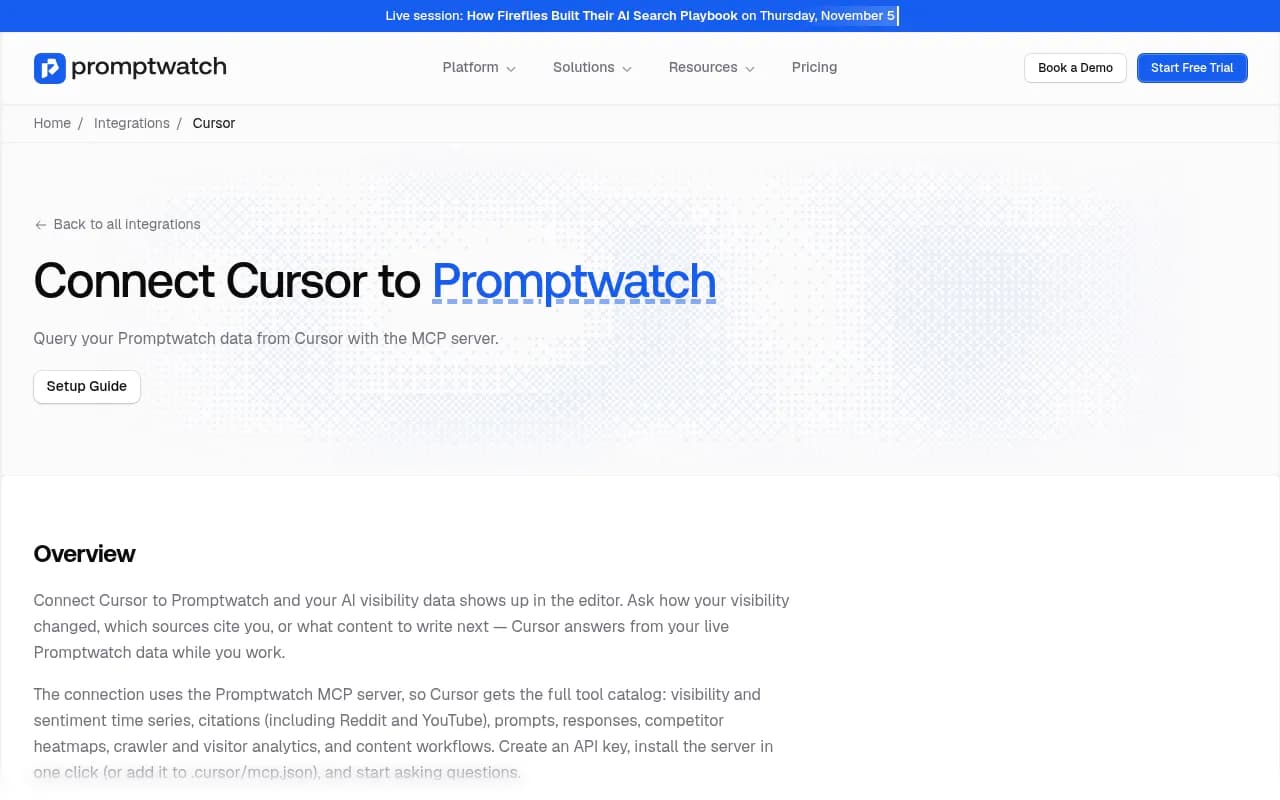
The integration page lays the process out in three steps: create the key, install the server, ask a question. Two ways to do step two.
One-click install
Open the setup guide at promptwatch.com/integrations/cursor and use the install link. Cursor opens a dialog with a config prefilled. Replace YOUR_API_KEY with your key and click Install.
Manual config
Add this to .cursor/mcp.json:
{
  "mcpServers": {
    "promptwatch": {
      "url": "https://server.promptwatch.com/mcp",
      "headers": {
        "Authorization": "Bearer YOUR_API_KEY"
      }
    }
  }
}
Then open Cursor's MCP settings and confirm the server shows up with its tools listed.
A caution here. A project-level .cursor/mcp.json sits inside your repo, and the key is in plaintext. I did not find an official statement on this, so treat it as my inference from the config format: add the file to .gitignore, or put the config in your user-level Cursor config instead of the repo. A leaked key gives someone read access to your AI visibility data, and possibly write access to content workflows.
Connect Claude Code
OAuth (recommended)
OAuth gives you a consent page where you choose which organization and projects the client can see. That is a better default than a long-lived key sitting in a config file.
- Add the server:
claude mcp add --transport http promptwatch https://server.promptwatch.com/mcp
- Start a Claude Code session, run
/mcp, selectpromptwatch, choose Authenticate, and finish the consent page in your browser. - Check the result:
claude mcp list
The server should show as Connected.
The pitfall: do not pass --header in step one. Adding a header switches Claude Code to API key auth and skips the OAuth flow entirely, with no warning. If Authenticate never appears in /mcp, that is the first thing to check.
API key
For headless boxes or scripts where a browser consent page is not an option:
claude mcp add --transport http promptwatch https://server.promptwatch.com/mcp --header "Authorization: Bearer YOUR_API_KEY"
Verify with claude mcp list again. Keep the key in an environment variable or secrets manager where you can, rather than pasting it into shell history.
Other clients
Anything that speaks Streamable HTTP can use the same URL and Bearer header. For clients that only support local stdio servers, the mcp-remote proxy bridges the gap:
{
  "mcpServers": {
    "promptwatch": {
      "command": "npx",
      "args": ["-y", "mcp-remote", "https://server.promptwatch.com/mcp", "--header", "Authorization: Bearer YOUR_API_KEY"]
    }
  }
}
If you prefer a chat interface over a code editor, Claude web and Desktop connect through Customize, then Connectors, then searching for Promptwatch. ChatGPT has a Promptwatch plugin in its store. Same data, different front door.
First prompts to try
The docs suggest a handful of starter questions, and they are a decent smoke test:
- How visible is my brand in AI search results?
- Which sources are LLMs citing when they mention us?
- Compare our AI visibility against competitors.
- What content gaps should I address?
- How much traffic are we getting from AI tools?
If those return real numbers, the connection works. I could not find a published list of exact tool names, so I would not write prompts that depend on them. Describe what you want and let the agent pick the tool.
To read the answers properly, it helps to know the metrics. Visibility Score runs 0 to 100, and responses that never mention you count as zero, which is why a new brand's score looks harsh. Share of Voice is your slice of all brand mentions. Position is where you land in an answer, and lower is better. The Academy has a metrics overview, plus pages on Visibility Score and citations vs mentions.
Dev workflows worth setting up
This is where the connection earns its keep. A dashboard is fine for a weekly review. An agent with data access is better when the answer needs to turn into a code change.
Triage AI crawler errors against the codebase
Promptwatch's crawler logs are IP-verified, so spoofed bots are filtered out, and they show which AI crawlers (GPTBot, ClaudeBot, PerplexityBot and others) hit which pages and what errors they got. See the AI crawler logs feature for setup.
In Claude Code, try:
Pull the pages where AI crawlers hit errors in the last 14 days. For each one, find the route in this repo and tell me why it might be failing.
The agent gets the failing URLs from Promptwatch and the routing, middleware and robots config from your repo. Often the fix is a bot-blocking rule, a trailing-slash redirect loop, or a JS-only render. Promptwatch's own AI crawler traffic report (weekly verified requests from OpenAI, Anthropic, Google, Perplexity and Mistral, June 8 to September 6, 2026) is useful context for which bots deserve your attention first.
Turn content gaps into tickets
List the top content gaps for my project, ordered by prompt volume. Draft one GitHub issue per gap with the prompt, the competitors AI cites instead, and a suggested page outline.
If you also have a GitHub or Linear MCP server connected, the agent can file the issues itself. The content gap docs explain how coverage is scored.
Check a page before you ship a refactor
Before a docs restructure or URL migration, ask:
Which of our pages are cited by AI most often? List them with citation counts so I know which URLs not to break.
This one is cheap and has saved real pain. Pages that earn citations are the ones you least want to redirect carelessly. Promptwatch's half-life of content in ChatGPT report found landing pages and docs stay cited longest in the 90 days after July 6, 2026, which is another reason to protect those URLs.
Pull AI traffic into your analytics conversations
How much traffic and how many conversions came from ChatGPT, Perplexity and Gemini in the last 30 days, by landing page?
A wrinkle worth knowing: per Promptwatch, ChatGPT stopped sending a referrer on October 8, 2026, so attribution now leans on utm_source=chatgpt.com tagging, which you can count as ChatGPT traffic in a setting. Details are in the attributing AI traffic guide.
Draft content with repo context
The docs list a prompt like "Generate a blog post for prompt X using persona Y". In Cursor this is handy because the draft lands next to your content directory, your frontmatter conventions and your internal link targets. Promptwatch also publishes straight to WordPress, Webflow and Framer, but if your content lives in a repo as markdown, drafting in the editor is the more natural path.
Developer tools: track coding agent recommendations
If you build an SDK, API or developer tool, there is a second angle. Promptwatch's glossary defines coding agent visibility as how often Claude Code, Codex or Cursor recommend, install or build on your product.
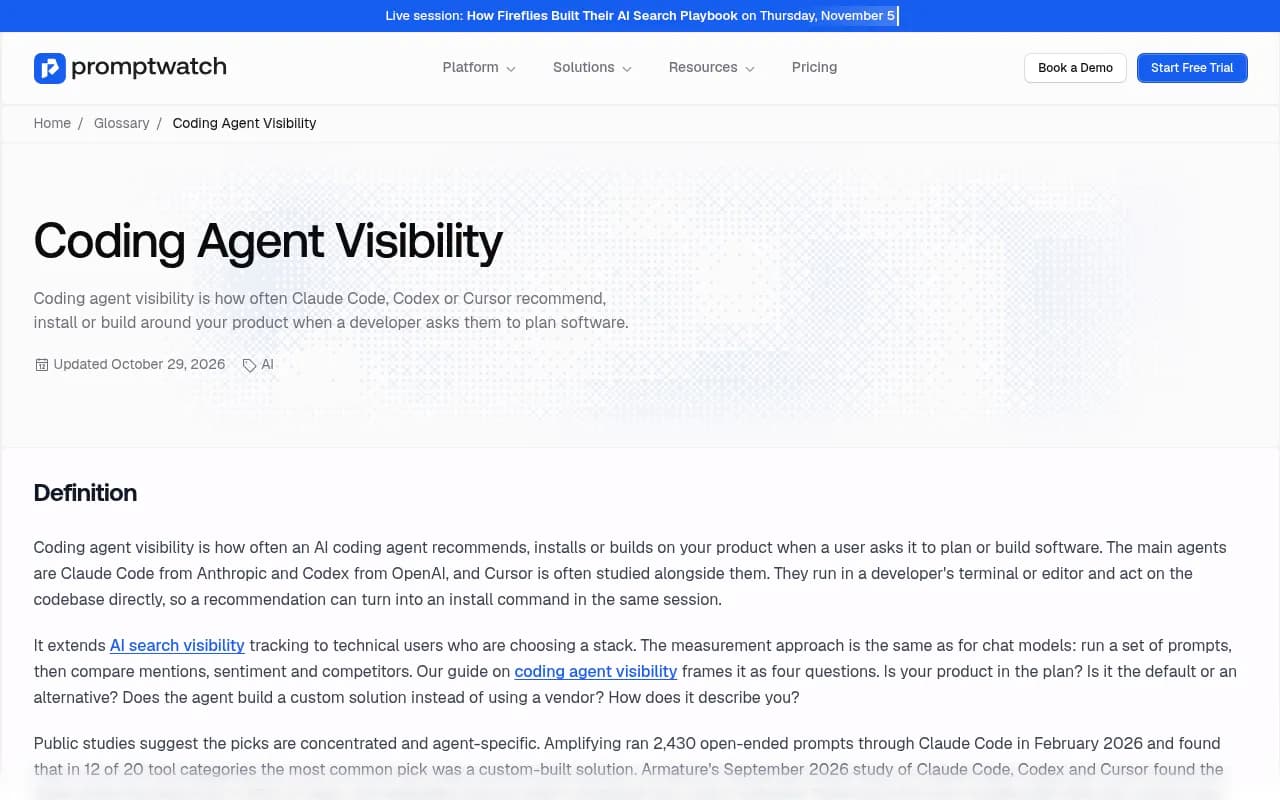
The glossary cites two third-party studies and says to treat the percentages as indicative. Amplifying ran 2,430 prompts through Claude Code in February 2026 and found that in 12 of 20 tool categories the most common pick was a custom-built solution. Armature's September 2026 study found Claude Code, Codex and Cursor chose the same tool in 42% of cases. The agents disagree with each other more than you would hope, so track them separately. Promptwatch tracks Codex, Claude Code and OpenCode directly.
Making the agent reliable
A connected agent is not automatically a good analyst. A few habits help.
- Name the project. If your key covers several, say which one in the prompt.
- Give a date range. "Last 30 days" beats "recently", and the API caps ranges at 92 days per request, so a quarter fits in one call.
- Ask for the numbers before the interpretation. Then ask what it concluded, so you can check the reasoning against the data.
- Keep write actions deliberate. Content workflows can create things. Read the proposed action before approving it.
- Put recurring questions in a project rules file (Cursor rules or a CLAUDE.md) so every session starts with the same context.
One limitation I would flag honestly: the agent only sees what Promptwatch has collected. Prompts you do not track produce no data, and a thin monitor gives thin answers. That is a setup problem, not an MCP problem.
Troubleshooting
| Symptom | Likely cause | Fix |
|---|---|---|
| Claude Code never offers Authenticate | --header was passed, forcing API key auth | Remove the server and re-add it without --header |
claude mcp list shows not connected | Auth incomplete or wrong URL | Re-run /mcp and authenticate; confirm the URL ends in /mcp |
| Cursor shows the server but no tools | Bad or expired key | Create a new key and update the config |
| Answers mention the wrong brand | Organization-level key with several projects | Use a project-scoped key or name the project |
| Client has no HTTP support | Older MCP client | Use the mcp-remote proxy config |
Which tool for which job
MCP is one way in. Promptwatch also has a REST API, a Slack integration, a Looker Studio connector, and Agent Chat inside the platform.
| Need | Best route |
|---|---|
| Fix a crawler error in the repo it comes from | MCP in Claude Code or Cursor |
| Draft content next to your markdown files | MCP in Cursor |
| Scheduled warehouse exports | REST API |
| Weekly briefings for non-developers | Agent Chat or Slack |
| Executive dashboards | Looker Studio or PDF reports |
If you are still choosing a platform and want to browse the category, the GEO software directory at bestgeosoftware.com lists the options. The honest filter for this particular workflow is whether a tool exposes an MCP server or API at all. Many monitoring-only tools stop at a dashboard.
If you have no data yet, start with the free AI visibility report, or the 7-day free trial on monthly billing for Essential, Professional and Business plans. Confirm current plan details at promptwatch.com/pricing.
A sensible first hour
- Create a project-scoped API key, or use OAuth for Claude Code.
- Connect the server and run
claude mcp listor check Cursor's MCP settings. - Ask the five starter questions and sanity-check the numbers against the dashboard once.
- Run the crawler-error triage prompt against your repo.
- Save the two or three prompts you liked into a rules file.
That is enough to find out whether the workflow fits your team. If the crawler triage prompt turns up one real bug in the first session, it usually does.